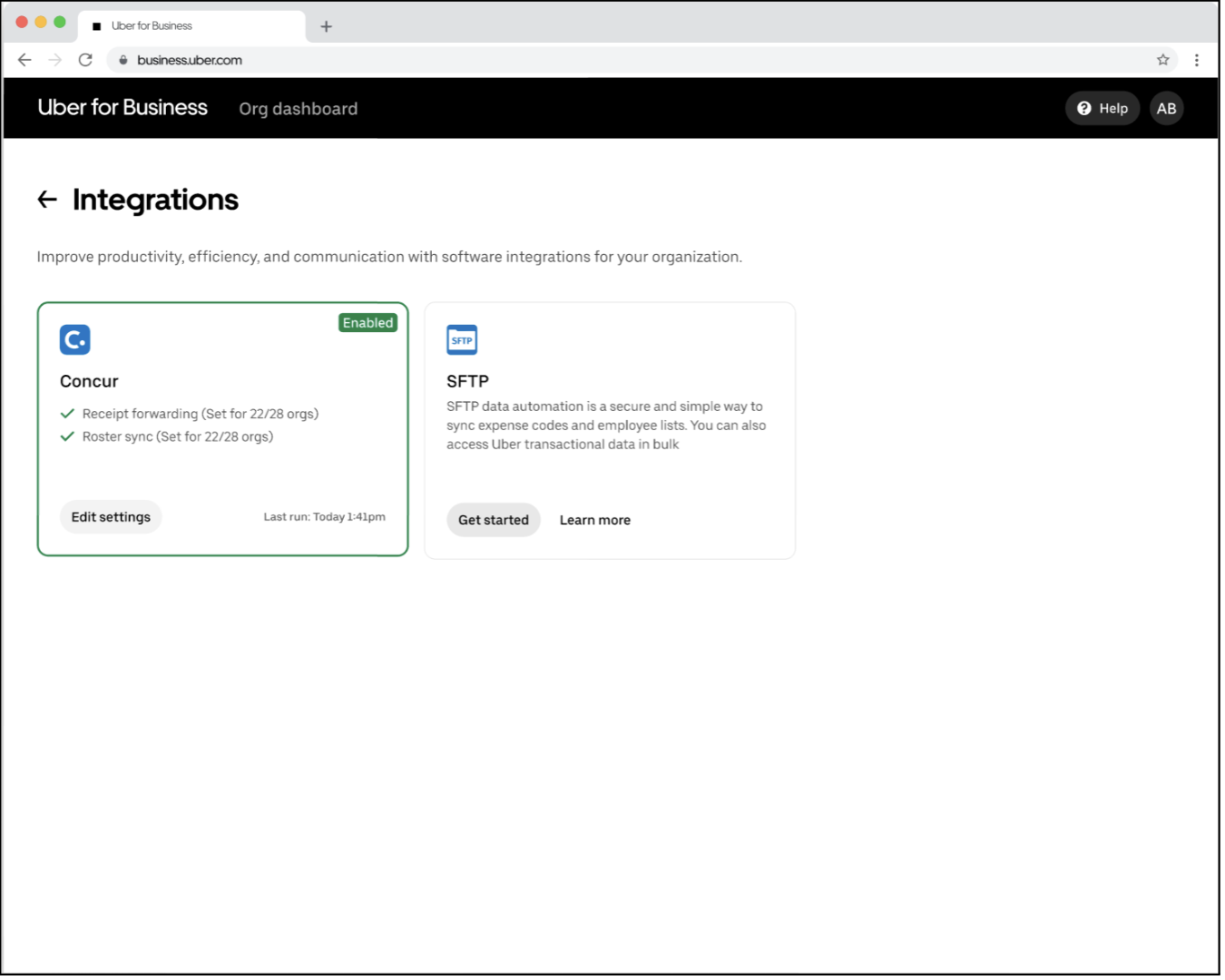
Steps to integrate
¶ Steps to integrate SAP Concur with Uber for Business Parent Dashboard
This guide helps admins seamlessly integrate Uber for Business with SAP Concur, enabling efficient receipt management and employee roster sync for linked child dashboards using the Uber for Business Parent dashboard.
-
Open Integrations in the Parent Dashboard: Click on the Profile icon at the top-right corner and navigate to the Integrations section within the parent dashboard.

-
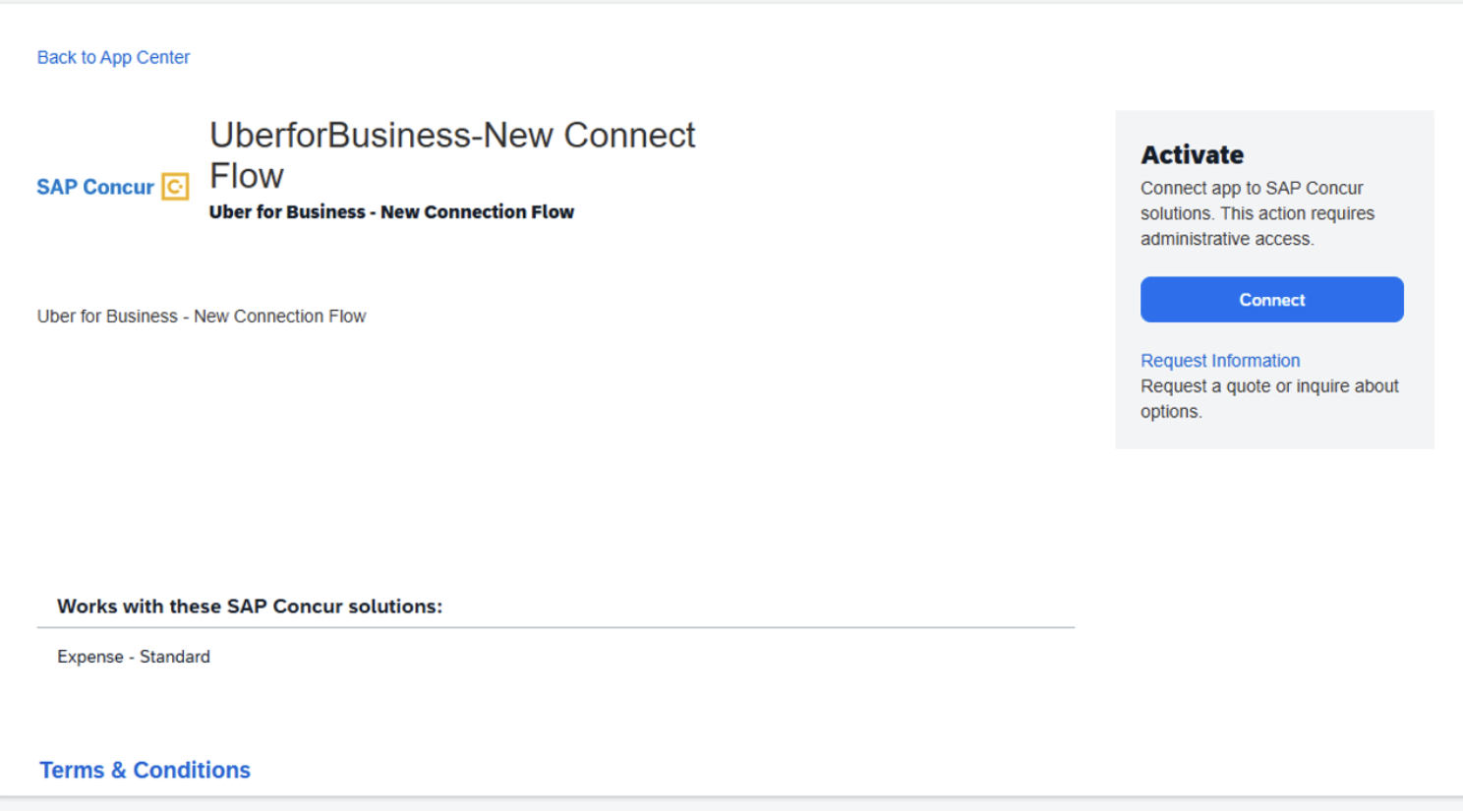
Link Your Concur Account: Select the SAP Concur integration and follow the prompts to link your Concur administrative account.

-
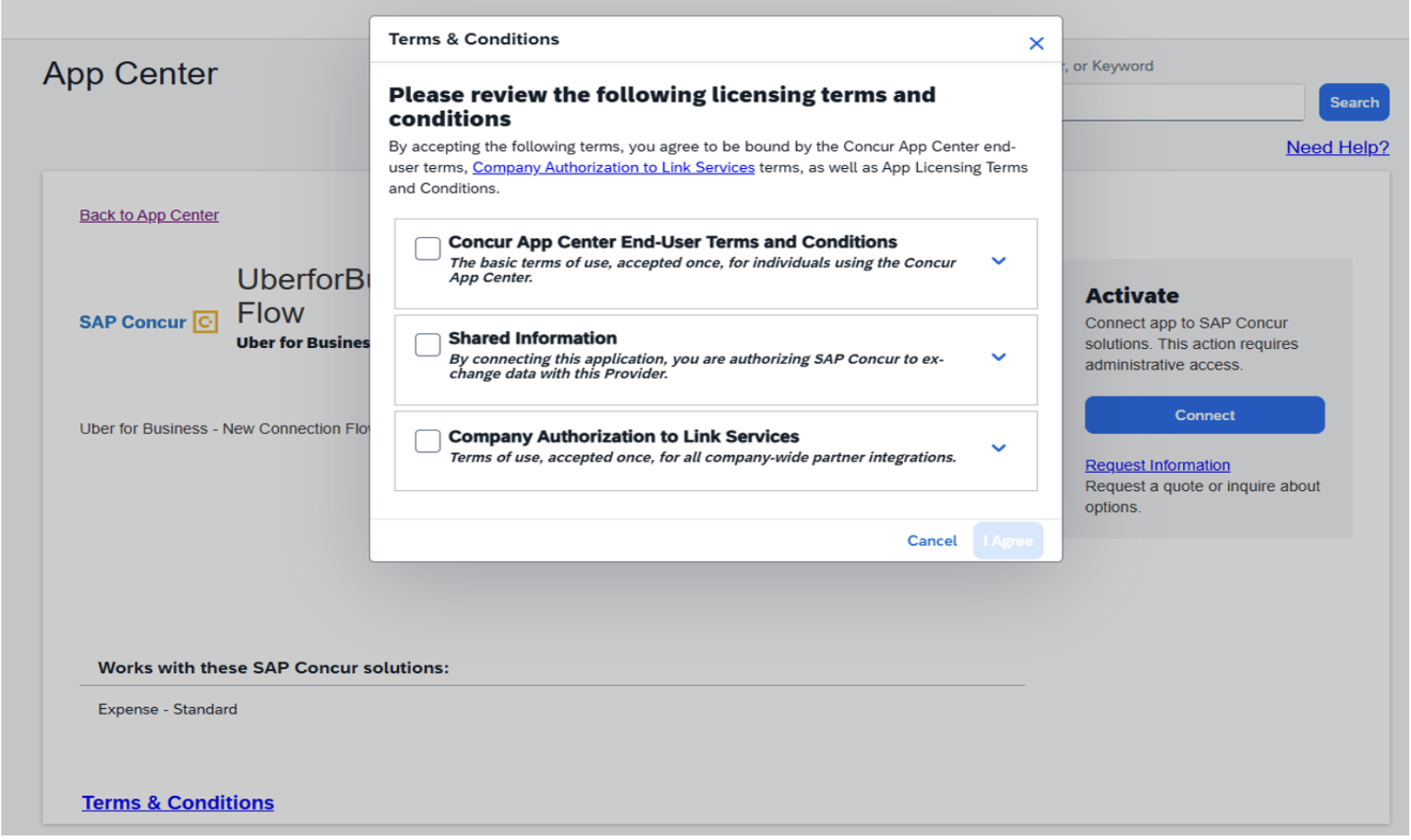
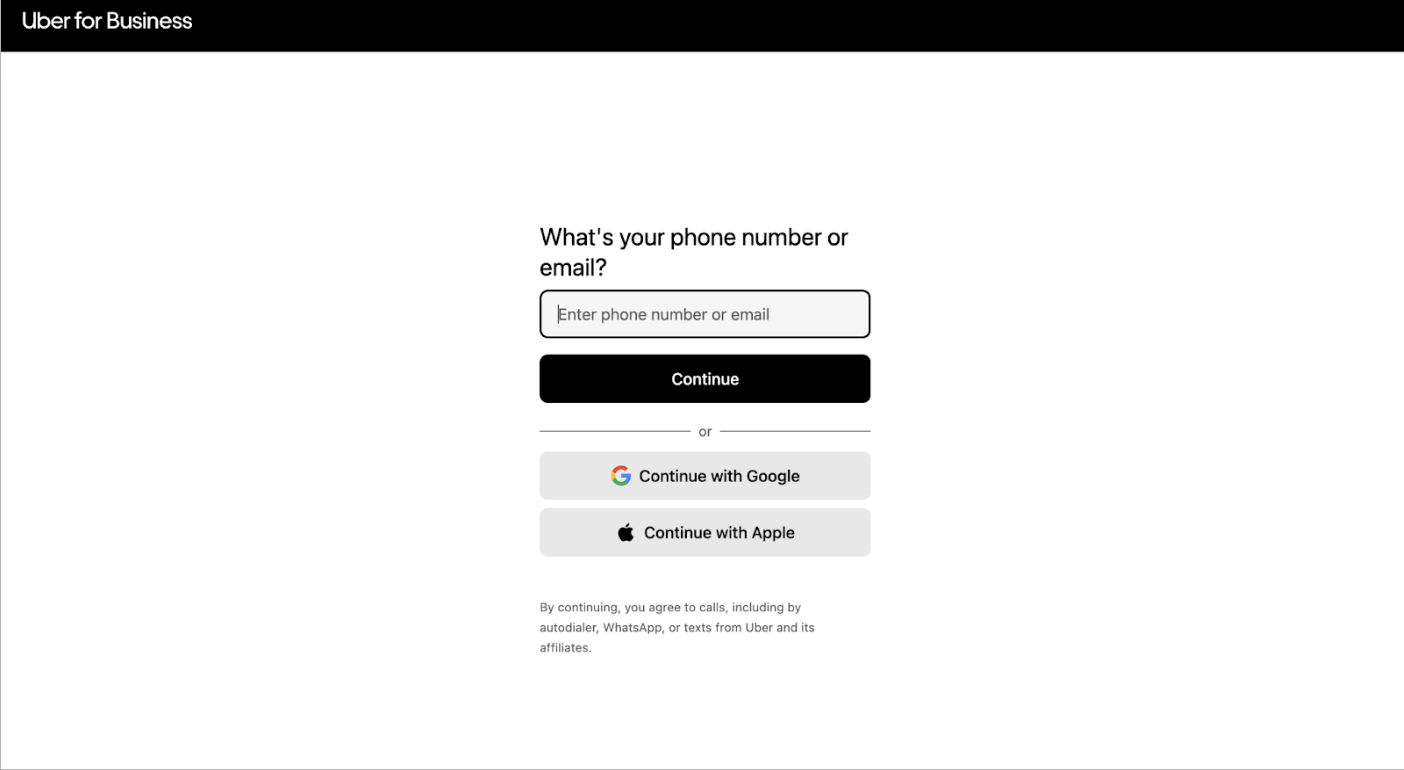
After linking your account, review and accept the terms and conditions for integration. Once accepted, log in to the Uber for Business dashboard to complete the setup. Ensure you use the correct account and select the parent dashboard for configuration. Note: This step may be skipped if you are already logged into Uber for Business in your browser.

-
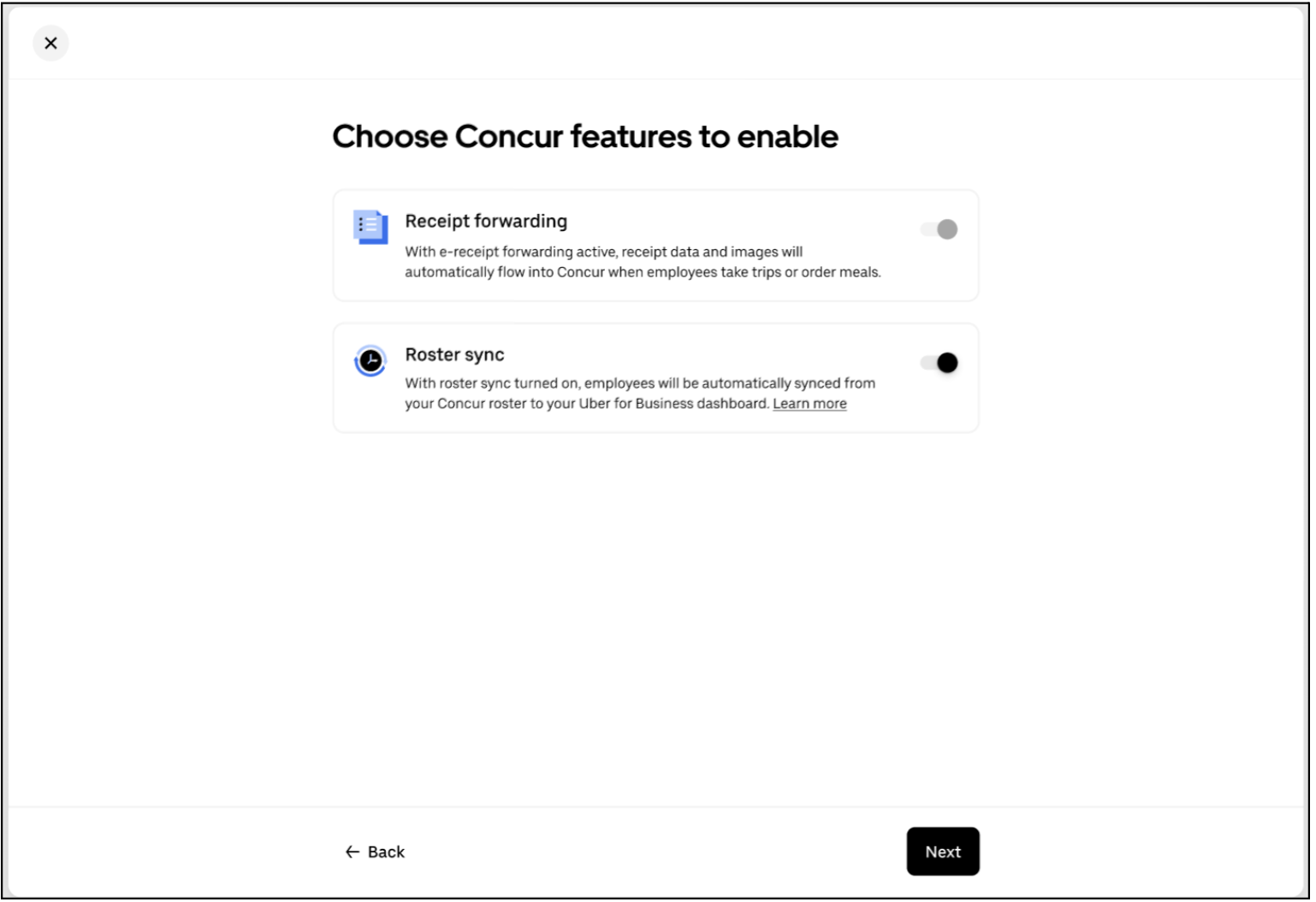
Choose Integration Features: After logging in, you will be prompted to select the features to enable for your SAP Concur – Uber integration on the parent dashboard.
- Receipt Forwarding is automatically enabled for all child organizations using decentralized billing.
- Employee Roster Sync is optional and requires accepting data-sharing permissions to activate once enabled.
-
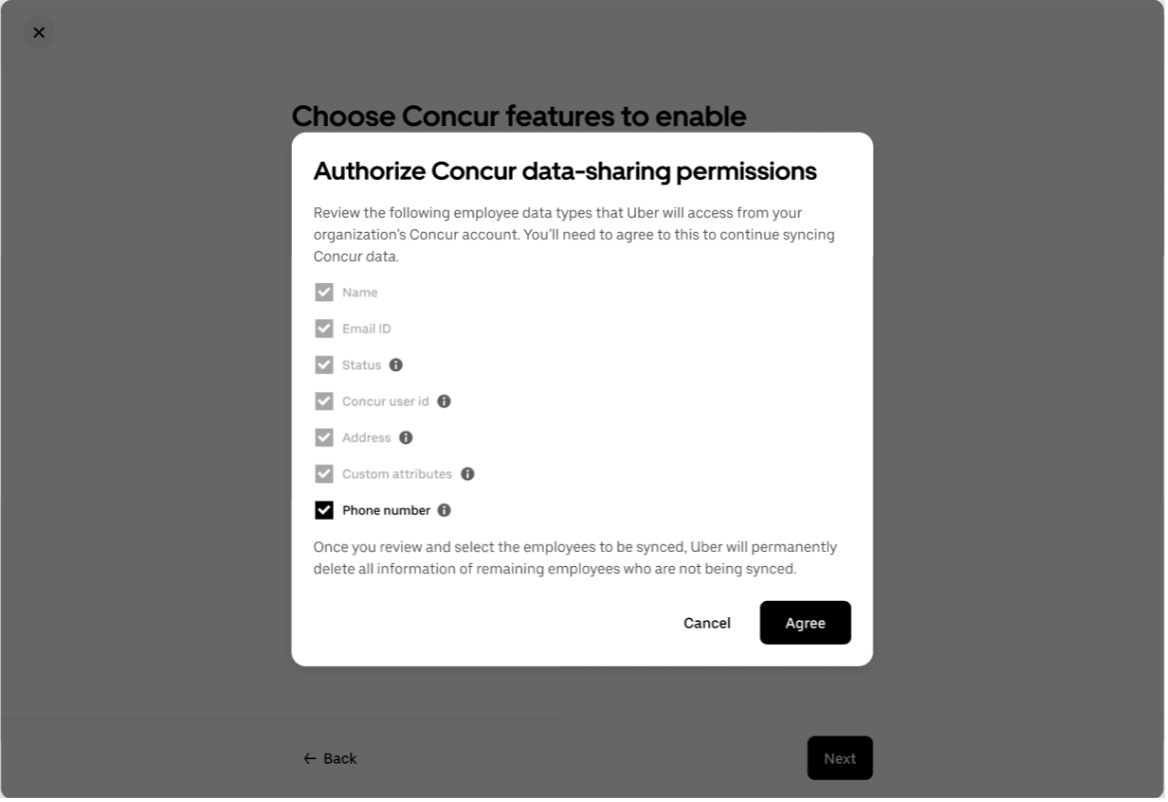
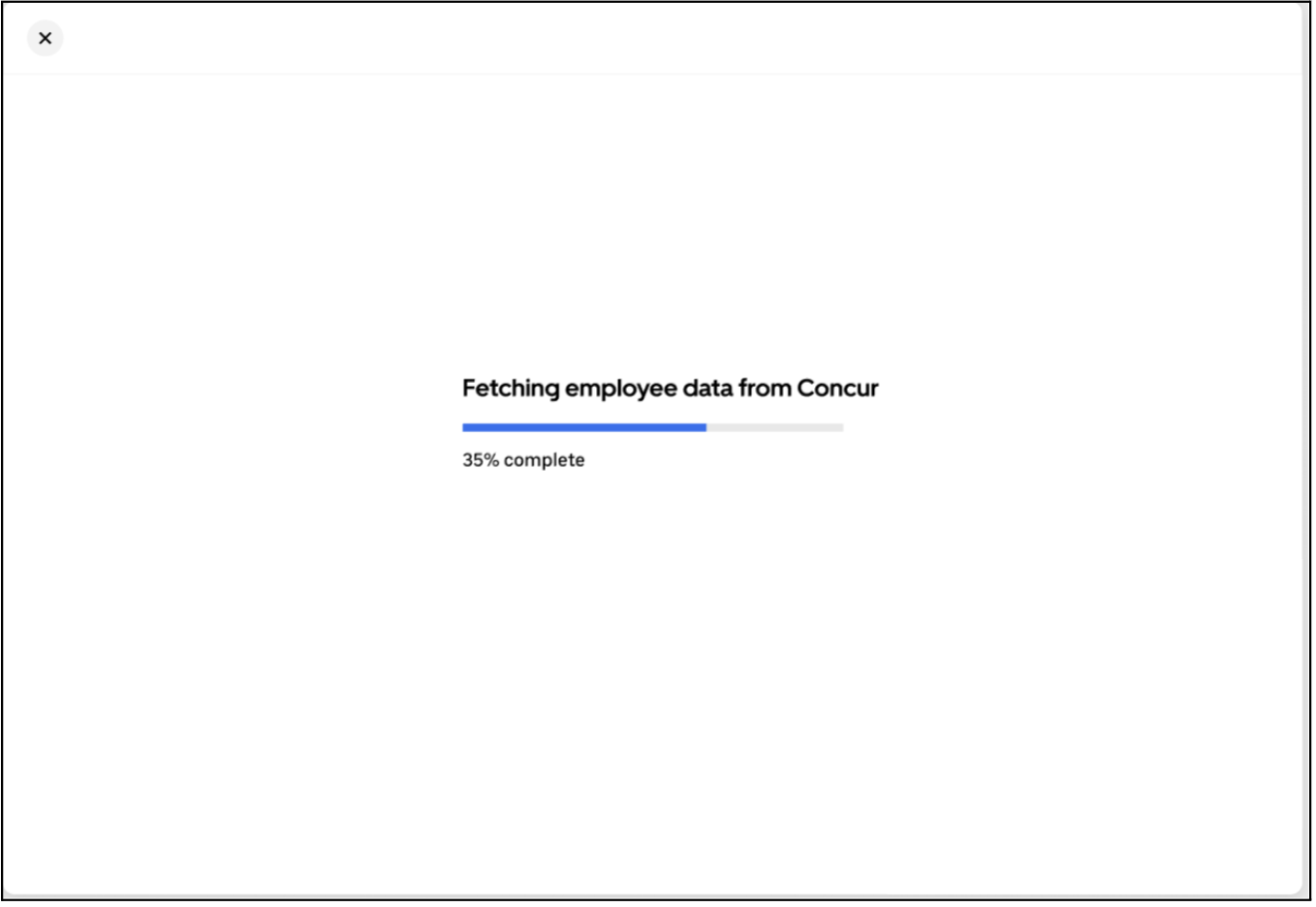
Enable Employee Roster Sync (Optional): To enable employee roster sync, accept the data-sharing permissions. Once permissions are granted, the system will automatically begin syncing your Concur employee roster. This process may take a little while as the system fetches employee data from Concur. For more information about data sharing between SAP Concur and Uber for Business, refer to this link.
-
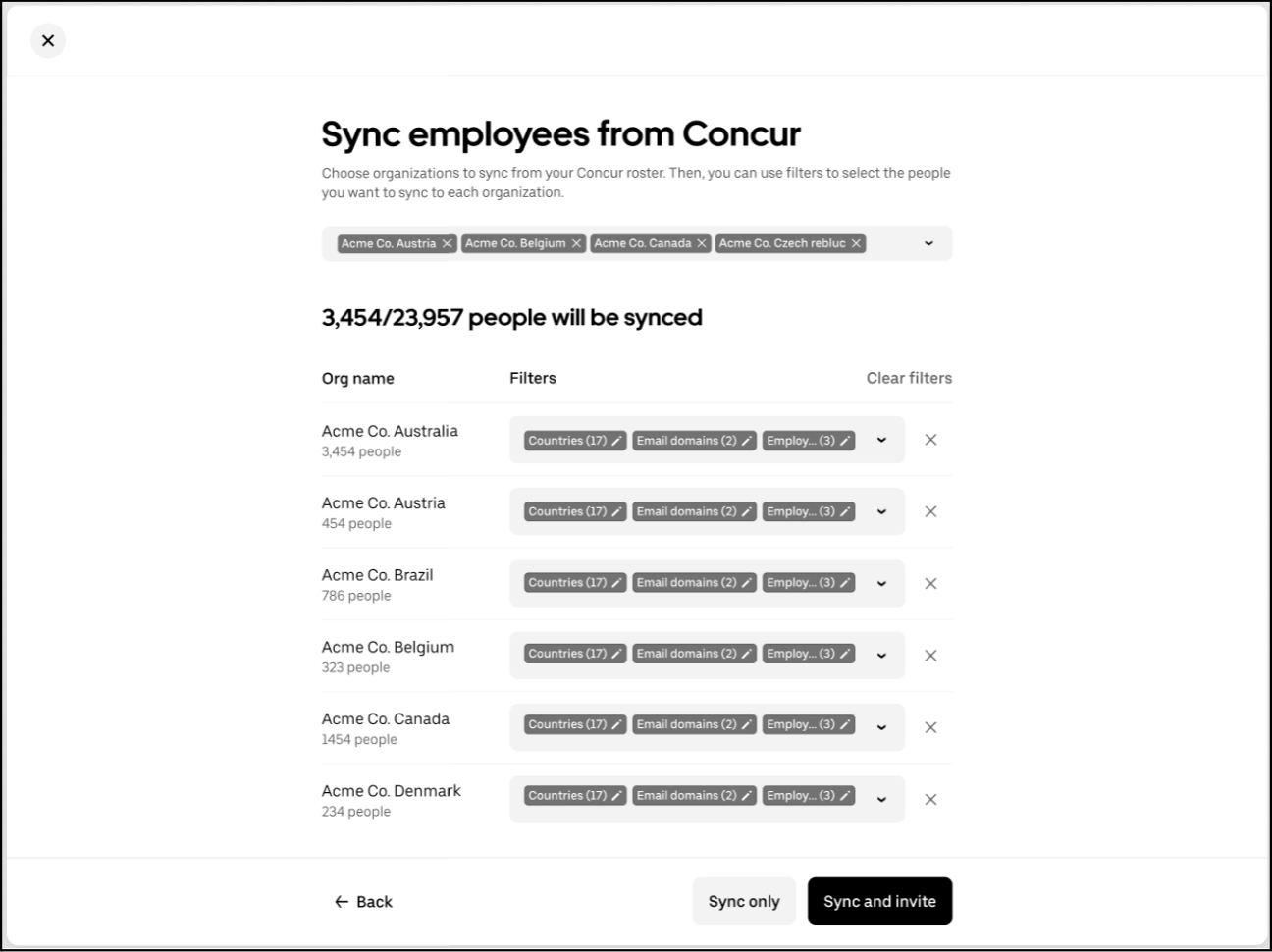
Select Organizations to Sync: Once employee roster sync is enabled at the parent organization level, use the dropdown to select which Uber for Business organizations should sync from your shared Concur roster. You can then apply filters to control which employees are synced to each organization.
-
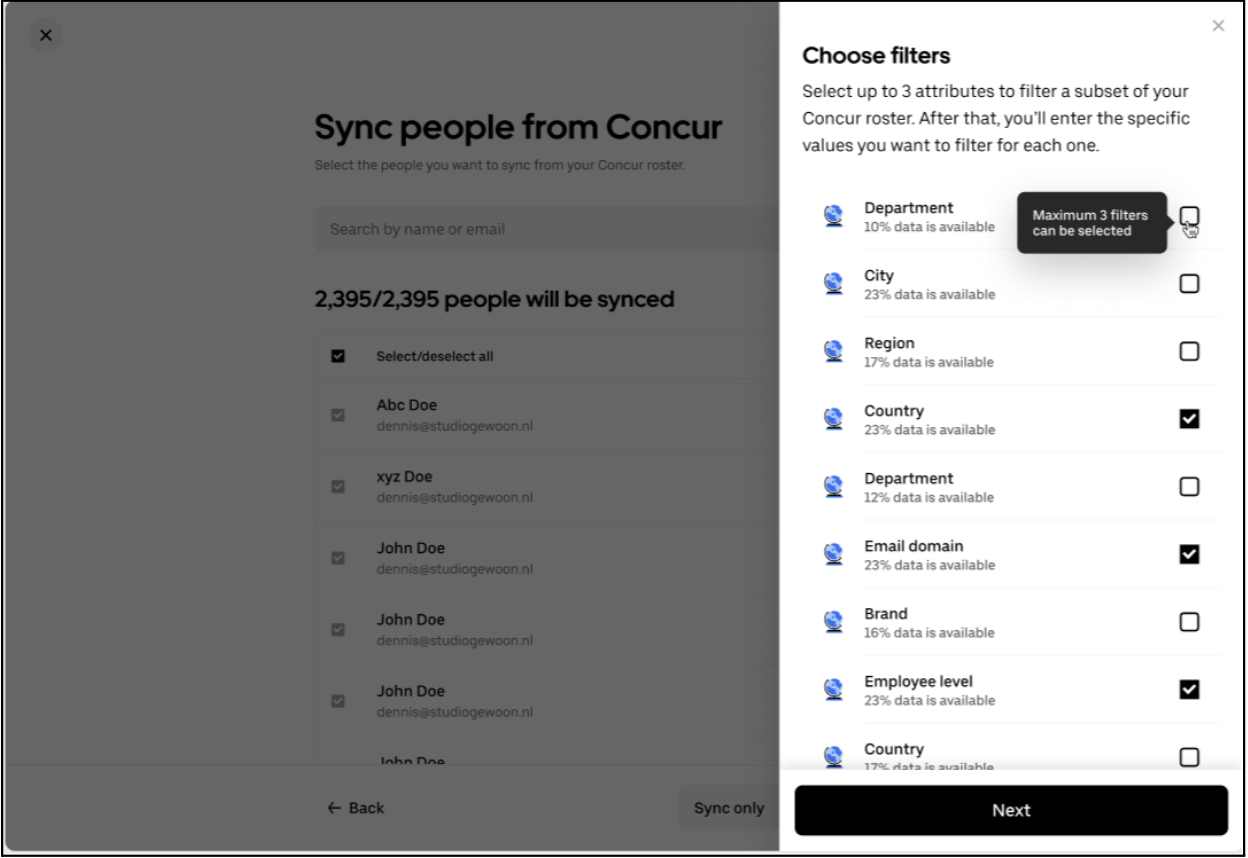
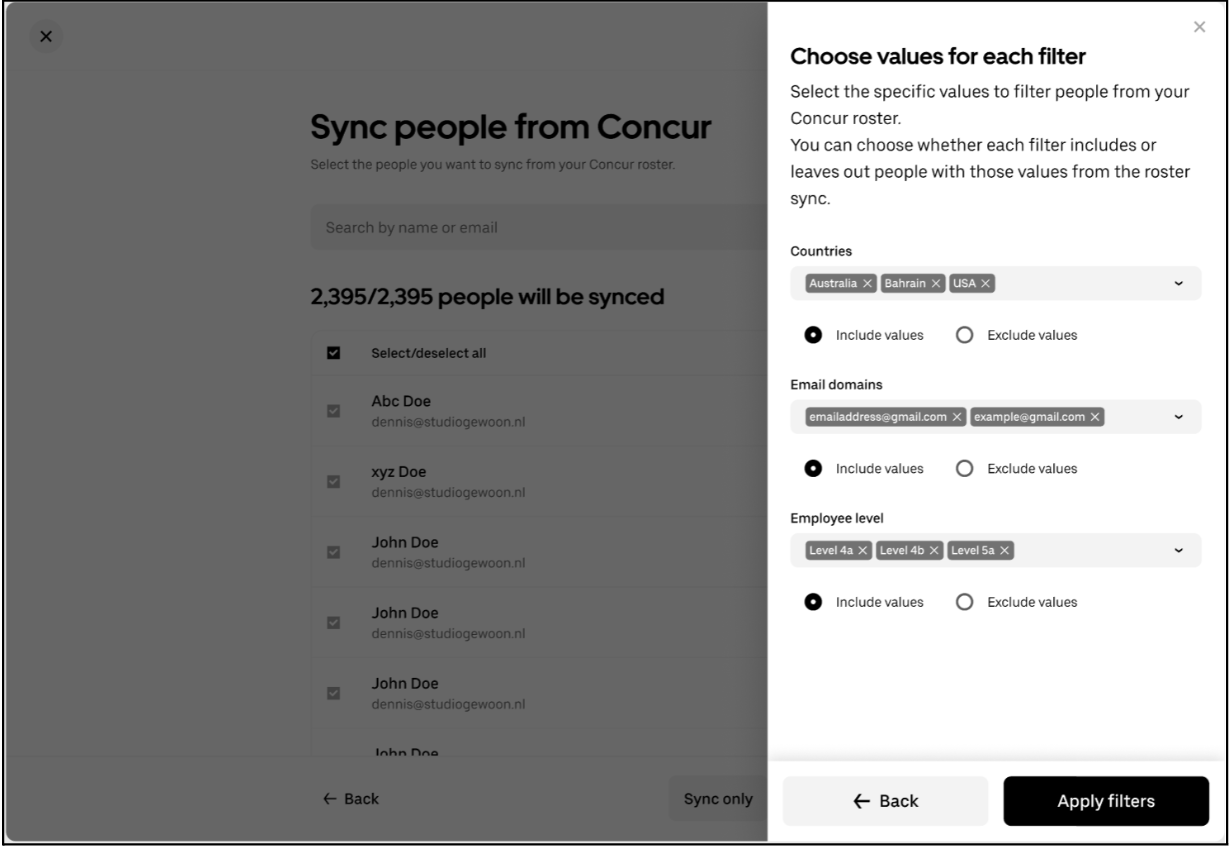
Choose and Apply Filters: Choose up to three filters for each child dashboard to filter employees (examples: Department, Country, Email Domain, Employee Level, etc. as available in your Concur roster).
- Select the values to include or exclude (e.g., Country = USA, Australia or Email Domain ≠ @gmail.com).
- Add multiple values by separating them with commas.
Once filters are defined, click Apply filters to confirm.
-
Review and Sync: The system will show how many employees will be synced based on your selections.
- Choose “Sync only” to sync the filtered employees without sending invitations. Invitations can be sent later from the People page.
- Or select “Sync and invite” to sync and automatically send invitations to the filtered employees.
-
Complete Integration: Once sync is completed, the setup for employee roster sync via Concur at parent level is complete. The state of the Concur integration will change to Enabled, and it will display the number of linked child orgs with active Concur setup.