OAuth 2.0 Playground - PKCE Flow
This section in the OAuth 2.0 Playground allows developers to test the PKCE-enhanced Authorization Code Flow. PKCE is an extension to the standard Authorization Code Flow, designed to provide additional security, especially for public clients that cannot securely store secrets.
Refer to this document for more information about this API
¶ Request Parameters
| Parameter | Description |
|---|---|
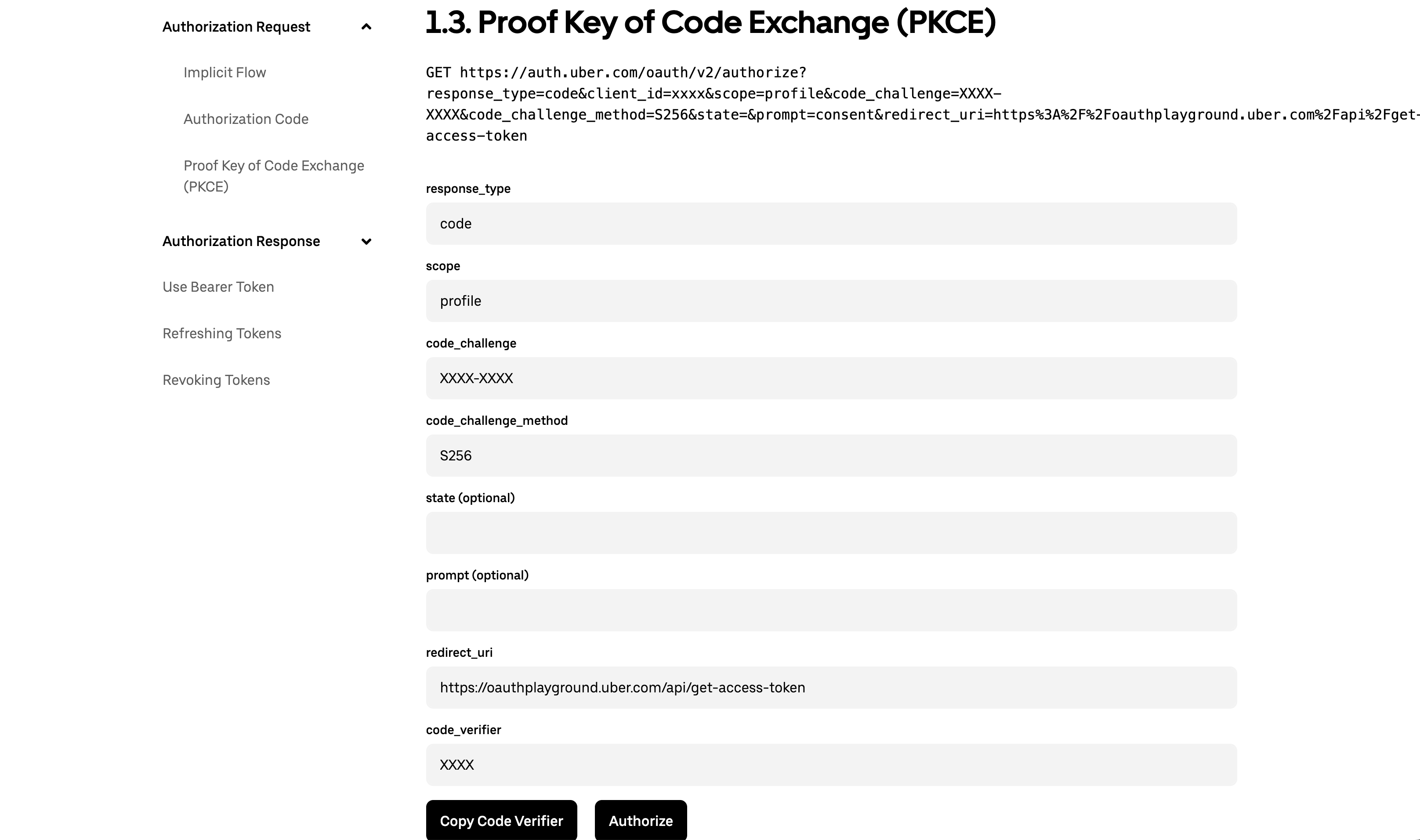
response_type |
OAuth 2.0 response type. You should use id_token for this example |
scope |
Space delimited list of grant scopes you would like to have permission to access on behalf of the user. Common ones are openid and profile scopes. |
code_challenge |
A hash derived from the code_verifier. This hash is sent in the initial authorization request, ensuring that only the application possessing the correct code_verifier can exchange the authorization code. |
code_challenge_method |
The method used to generate the code challenge from the code verifier. The recommended method is S256, which is SHA-256 encoding. |
code_verifier |
The original secret used to create the code challenge. This value will be used when exchanging the authorization code for an access token. |
state (optional) |
State which will be passed back to you to prevent tampering. |
prompt (optional) |
login is the only acceptable input at this time. When specified, always prompts the user to re-authenticate even if their browser session is already logged in to Uber. |
redirect_uri |
The URI we will redirect back to after an authorization by the resource owner. The base of the URI must match the redirect_uri used during the registration of your application. If none is provided the default is the first redirect URI provided in the application’s dashboard. It is invalid to provide no redirect uri and have none in the dashboard. |
¶ Step-by-step
-
At first fill out all the required fields in this page and click on the Authorize button
-
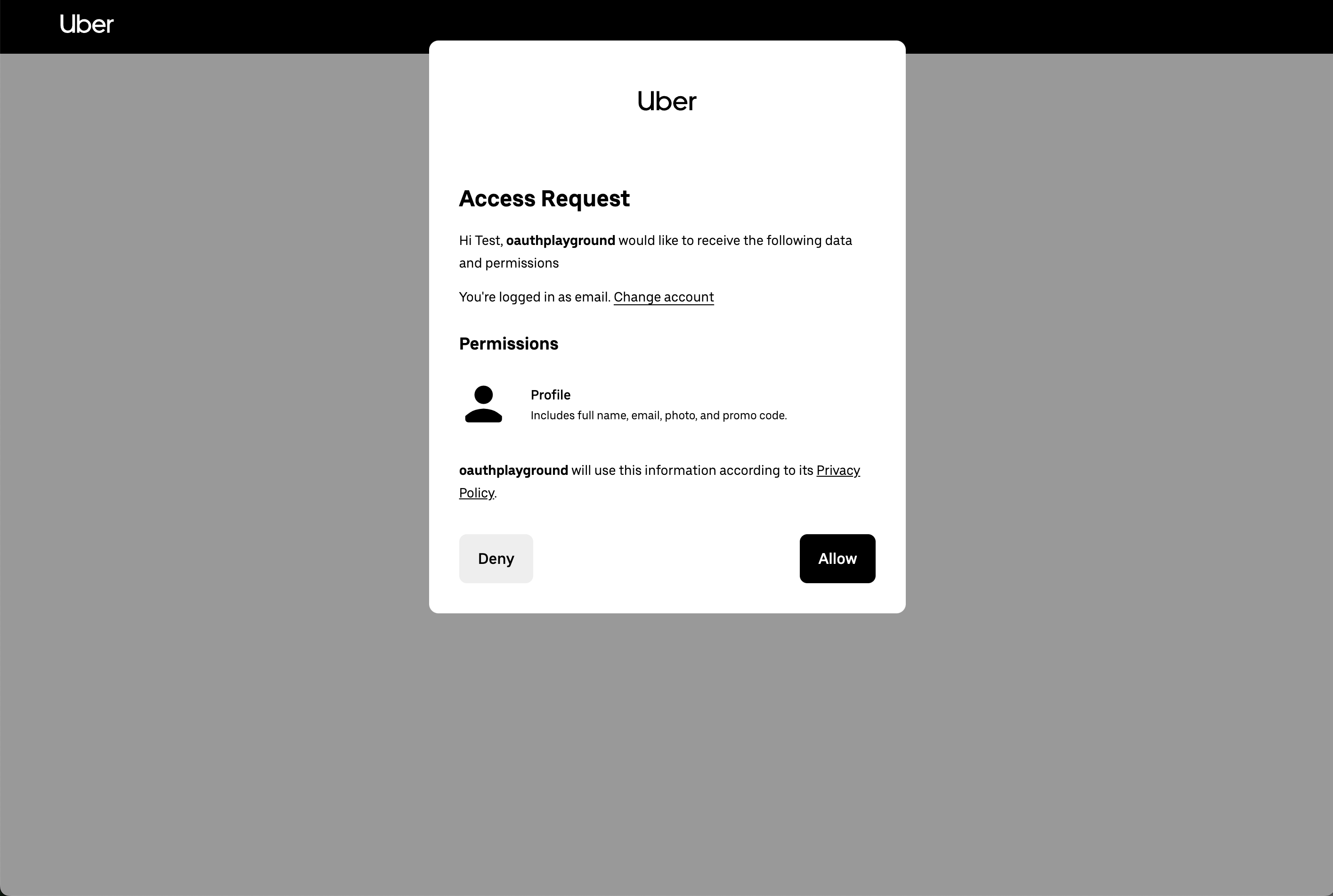
After clicking the Authorize button you are going to be redirected to the consent screen where it’s going to request permissions for the scopes selected
-
When you click allow, the page will redirect you to the Get an Access Token page, please, follow this link to complete the Step-by-step guide